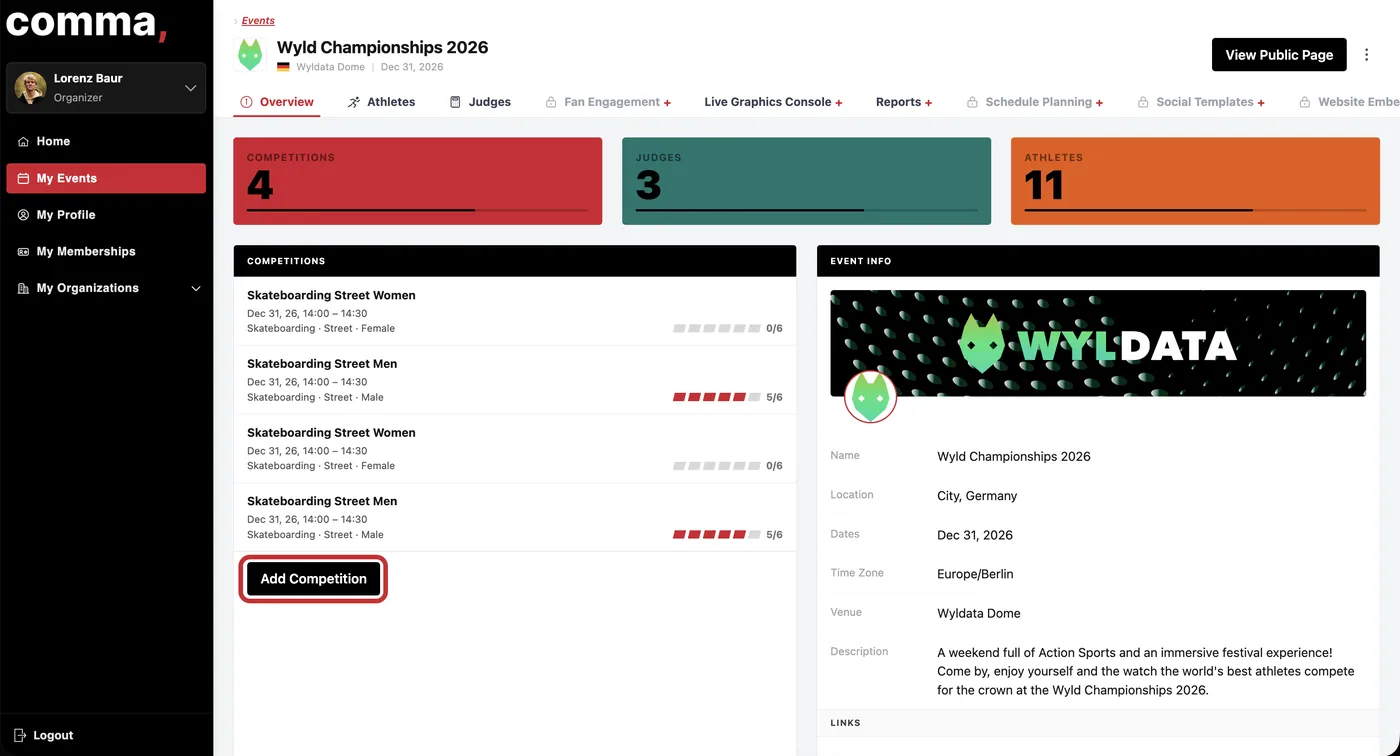
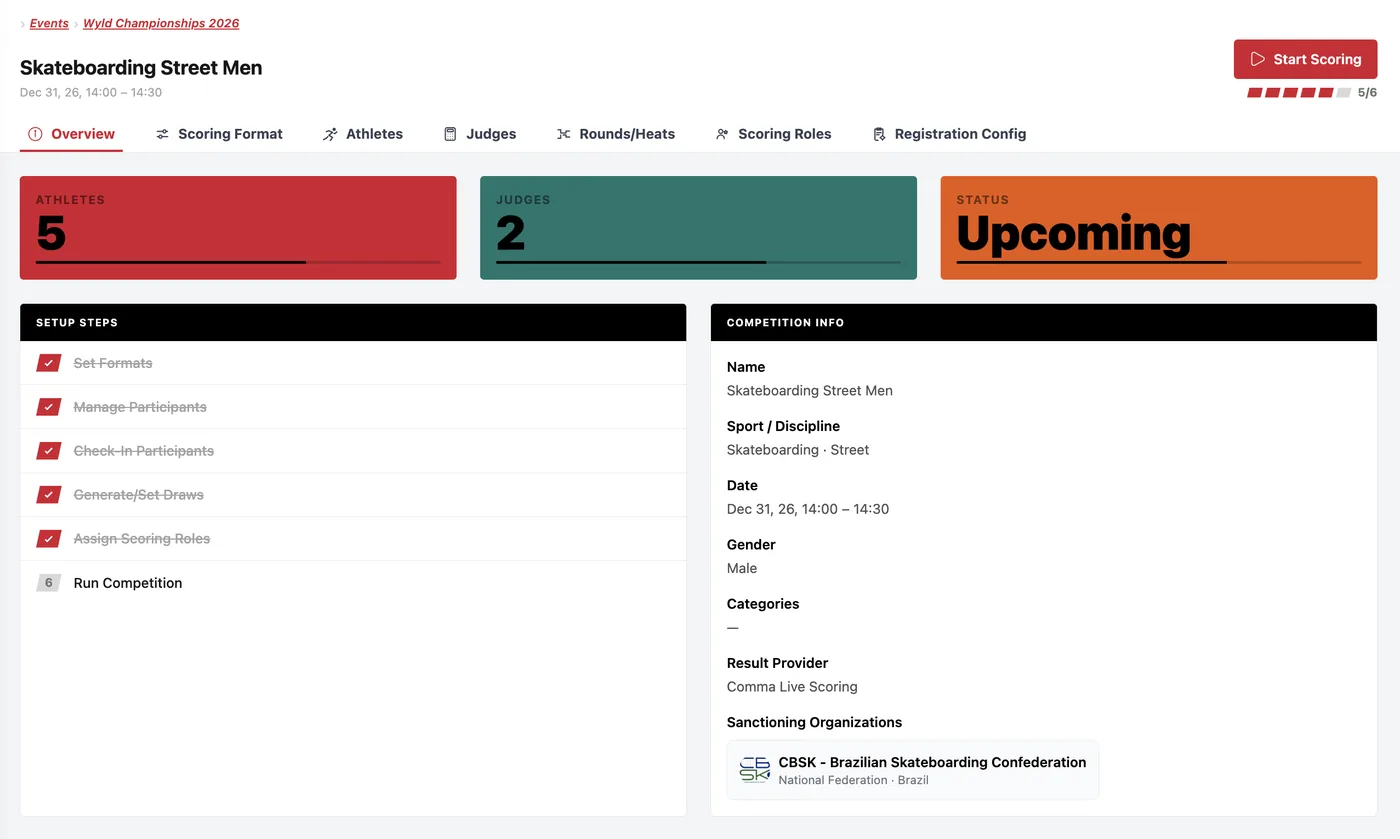
After publishing your event you get to the Event Overview. From here you can setup your live scoring, book add-ons (livestream graphics console, reports, schedule, social media templates etc.).
You can also Add further Competitions from here
To proceed from here, select the competition you want to prepare now.
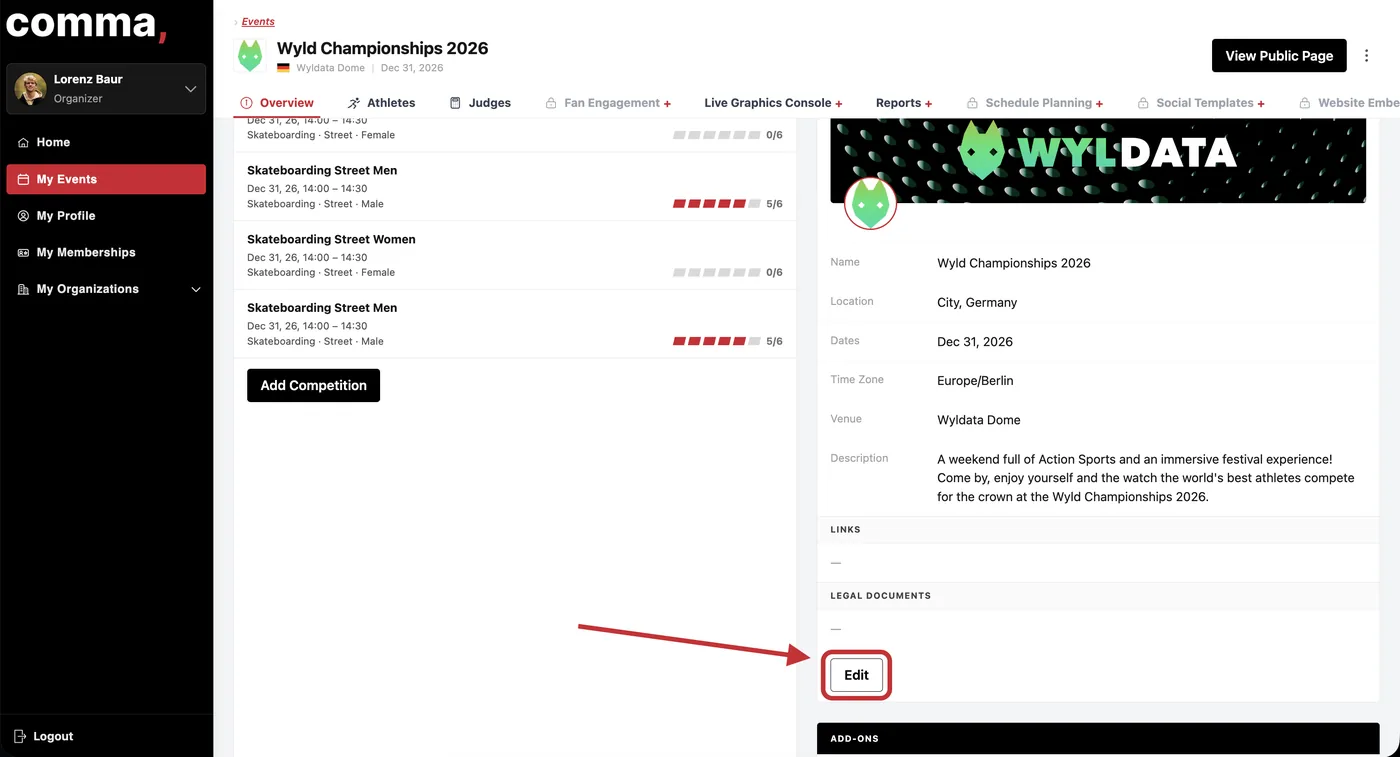
If you need to make any adjustments to the Event you can edit it here:
2Registration Configurations
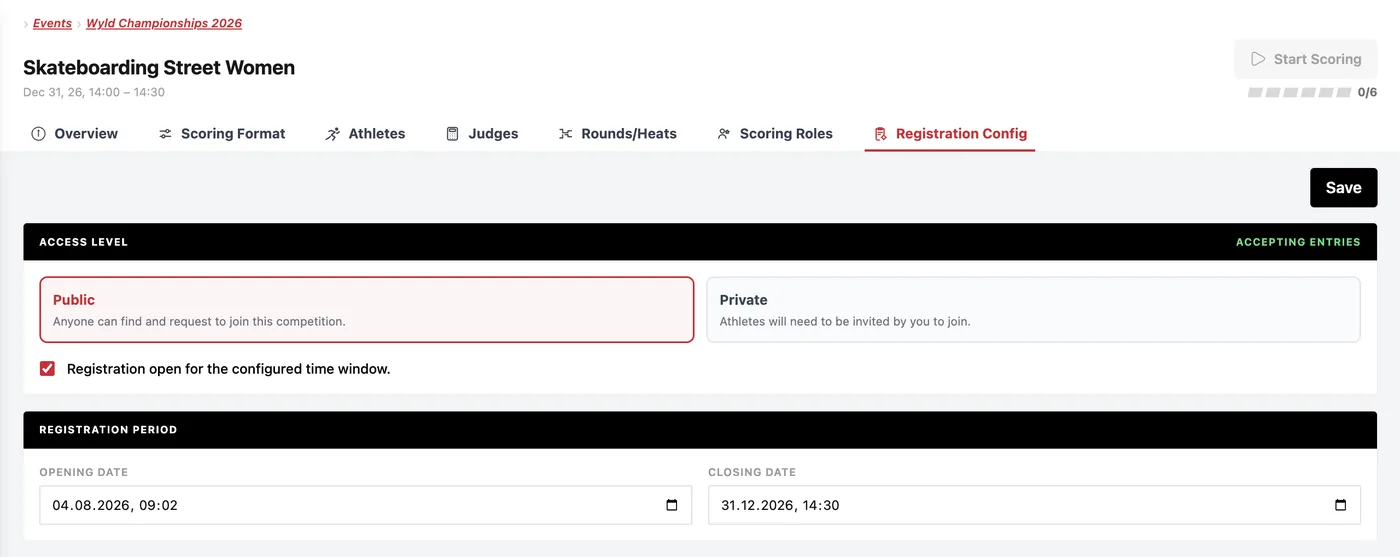
The competition in your event can either be Public or Private
Public: Anyone can find and request to join this competition, remember to set an opening and closing date for registrations. You can accept or reject their request
Private: You need to invite athletes per competition, so that they can join.
3Inviting Athletes
Navigate to the Competition, select the 'Athlete' tab and 'Invite Athletes'.
Options for adding athletes
1
Athletes request to participate
2
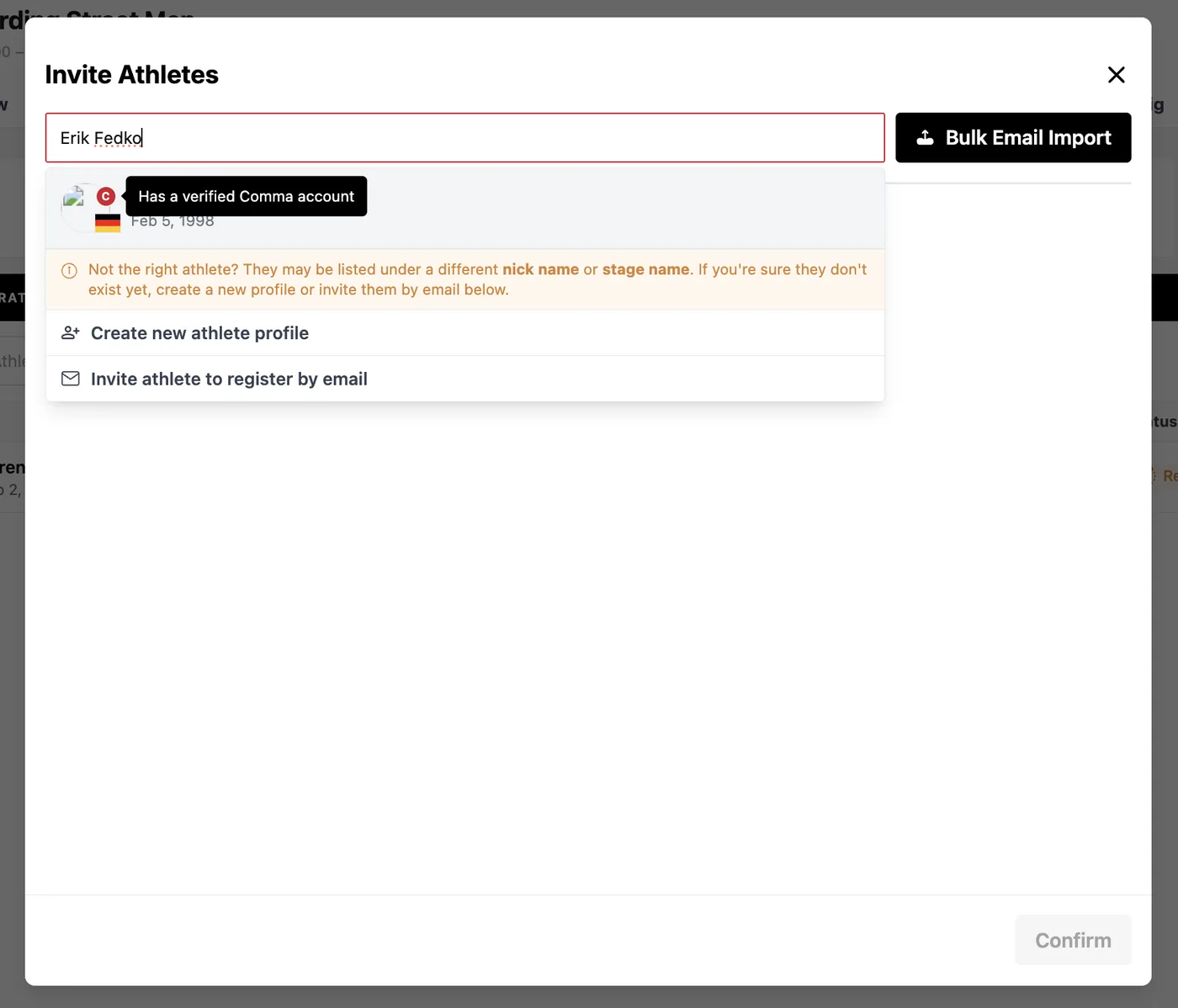
Athletes are invited via their existing comma profile
3
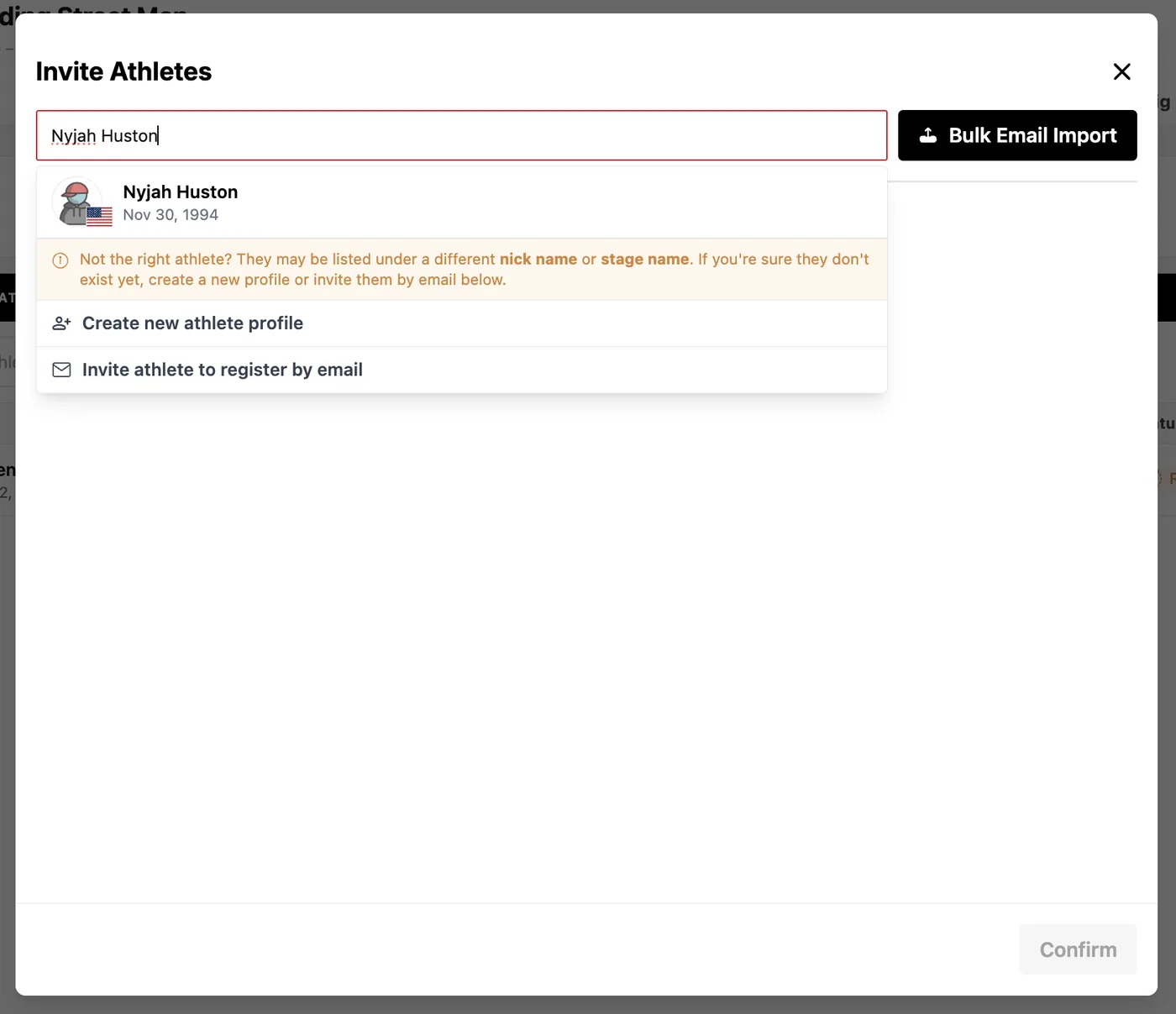
Athletes are added from the database
4
Athletes are invited to register to comma via email
5
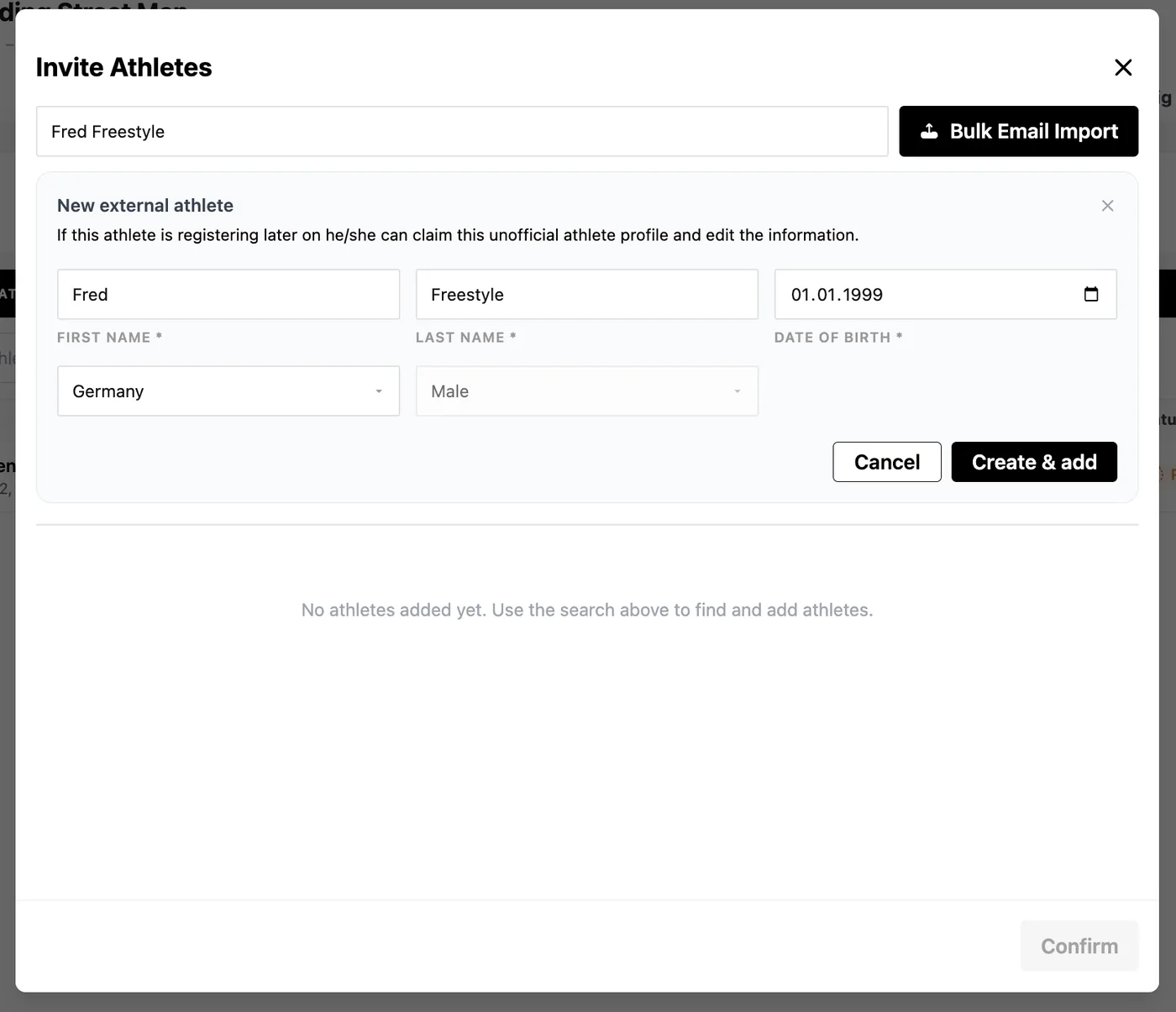
Athletes are manually added to the competition, ideal for last-minute registrations when they have no comma, profile or database entry yet
Make sure to accept the athletes to your competition so they know that they are competing!
1Athletes can request to join your event
2Athletes can be invited via their existing comma profile
Indicated by the "c" the athlete has a comma profile already
3
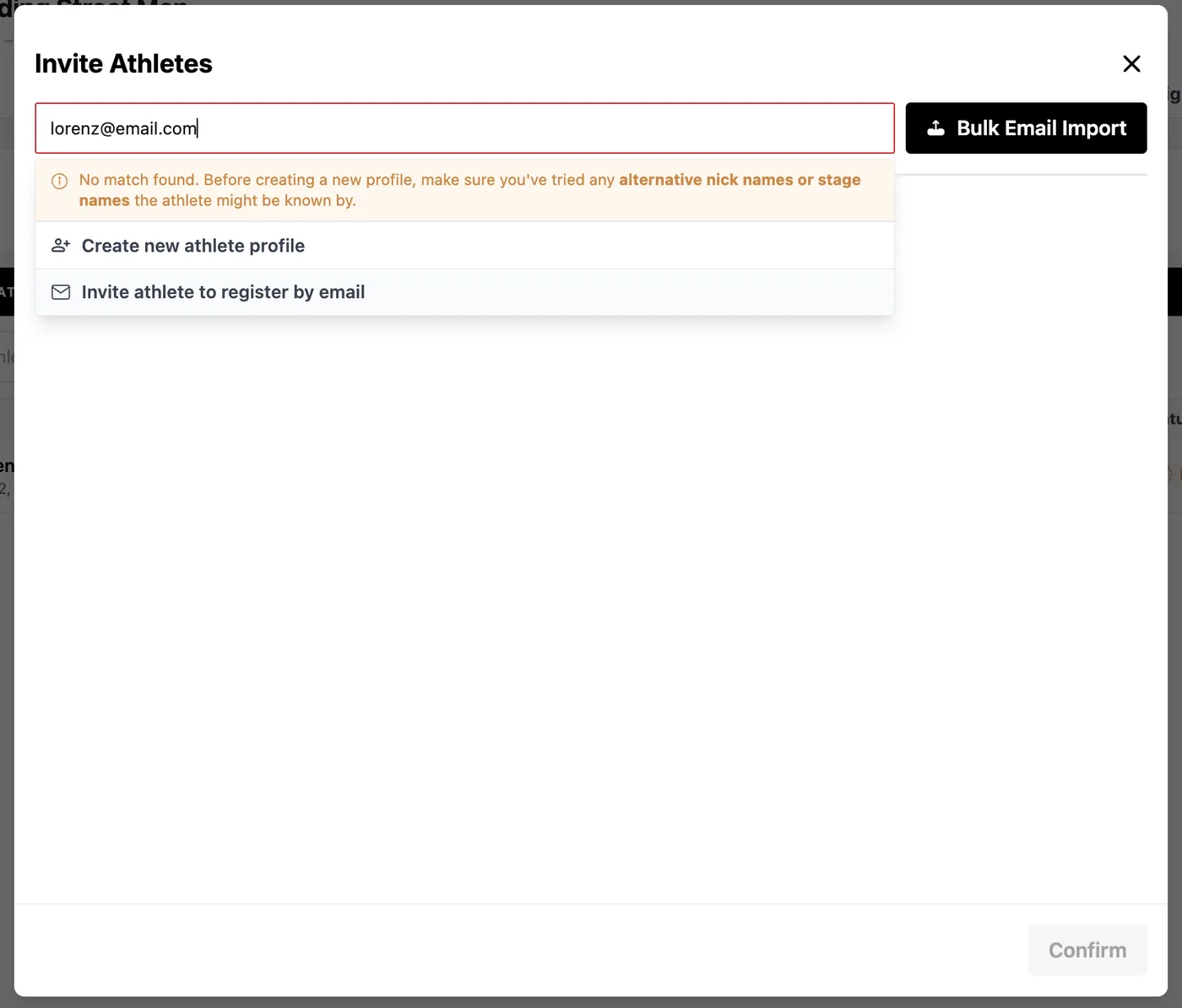
Athletes are invited to register to comma via email
If you want to use the Bulk Email Import Feature, upload a .csv file with valid email addresses
4
Athletes are added from the database
5Add athletes that are not registered to comma and not in the database yourself
4Inviting Judges
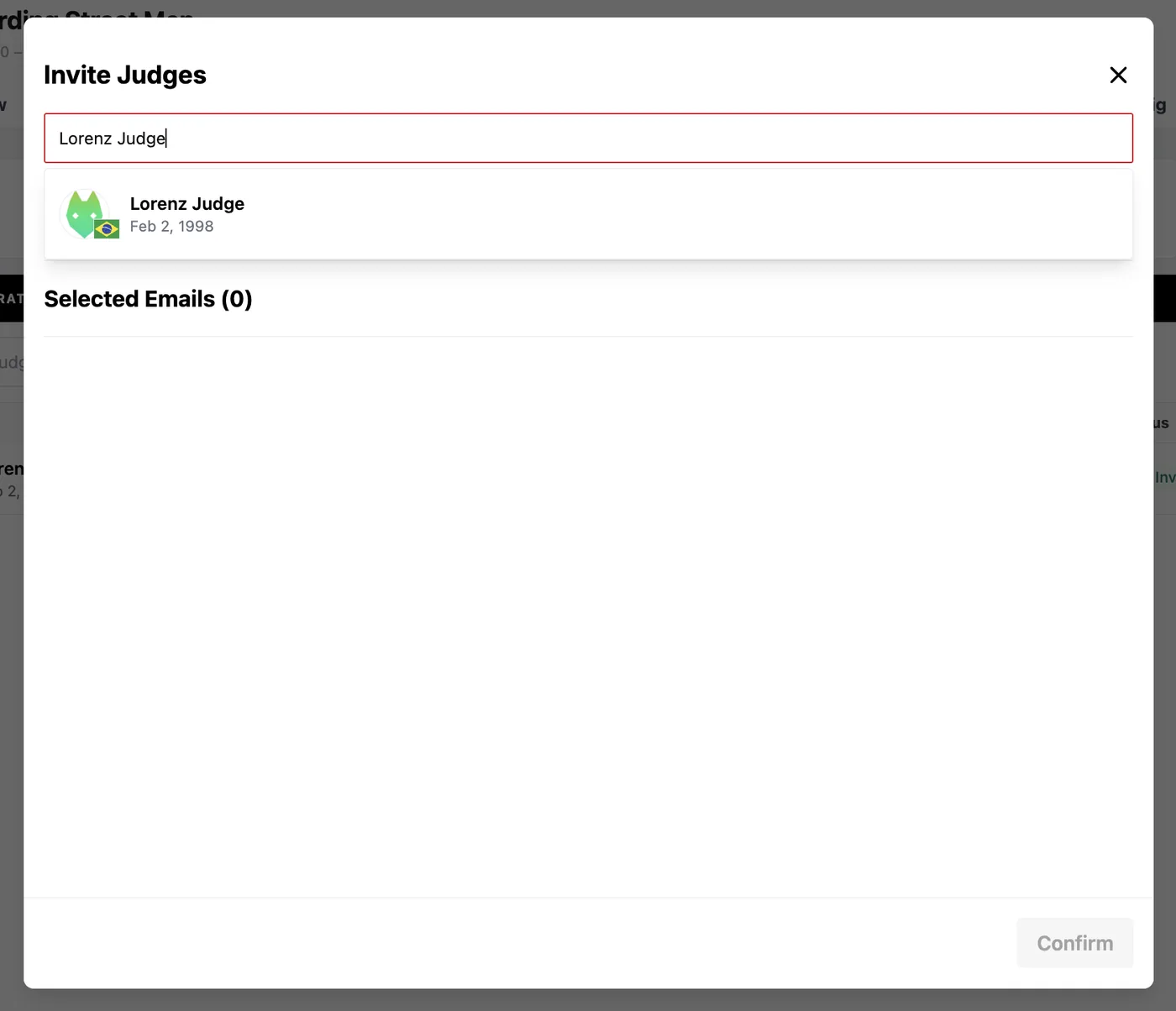
Navigate to the Competition, select 'Judges' Tab and 'Invite Judges'
Every judge needs to register to commabase.com and create a judge profile
Make sure to accept the judges to your competition so they know that they are judging!
1Judges can contact you via the provided organization email to judge your event
2You need to invite the judge, either through the comma profile or through a valid email address, the judge then uses for registration
5Scoring Formats
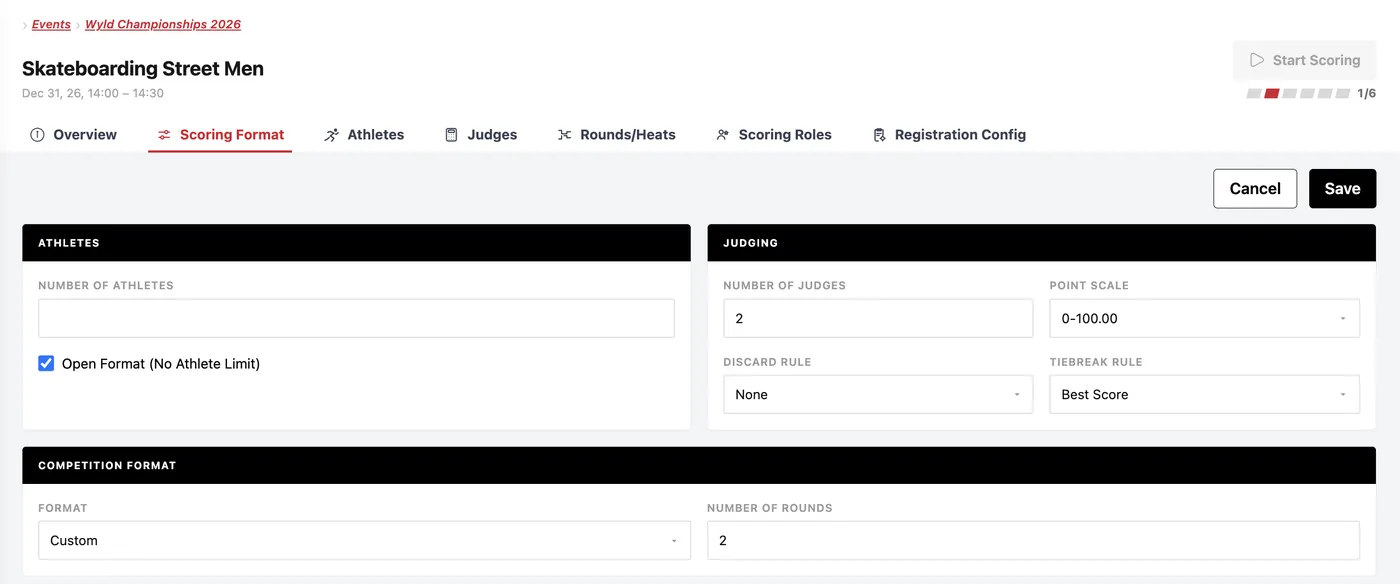
Athletes
Number of Athletes
The total number of athletes in competition (or select open format)
Judging
Number of Judges
How many judges are on site
Discard Rule
Select a Discard Rule e.g. to drop outlier scores (highest and/or lowest)
Point Scale
Select applicable point scale
Tiebreak Rule
How should ties be broken?
Competition Setup
Competition Format
Custom, Pre-Defined Comp Formats
Number of Rounds
The number of rounds, i.e. Qualification, Semifinal, Final
Click Save, once you entered these infos. Now you can configure each round!
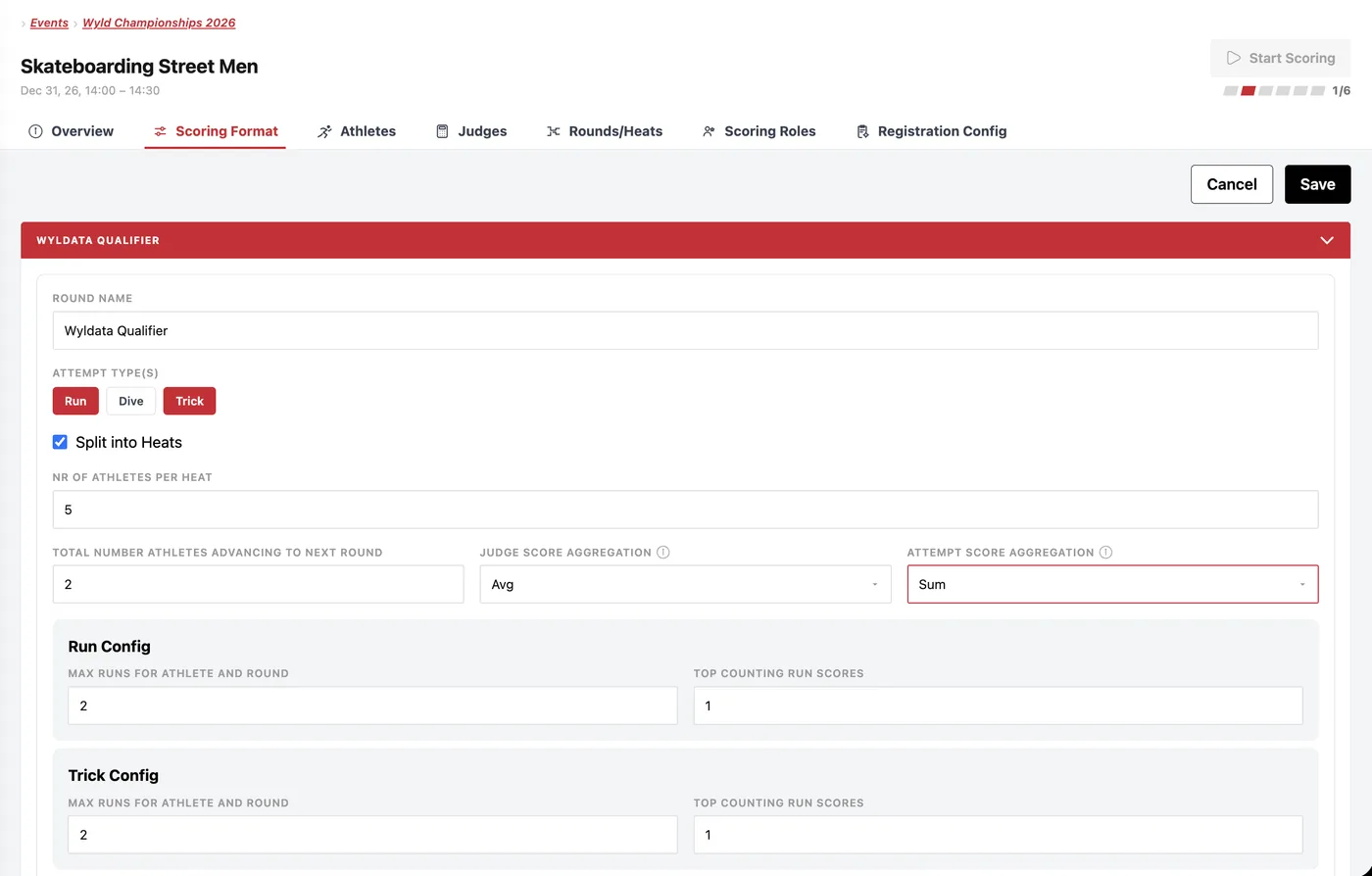
Rounds Configuration
Round Name
Give your round a unique naming e.g. by including sponsors naming
Attempt Types
You can use either one or multiple types, for your competition
Split into Heats
Activate if you run your competition with heats
Number of Athletes per Heat
Available if you chose heats
Total Number Advancing To Next Round
Number of all athletes that advance to next round (across all Heats, in this case only the best two athletes out of all heats advance)
Judge Score Accumulation
Judge scores are displayed as the sum of all or the average (after applying discard rule)
Run Score Accumulation
The sum or average of all run scores
Run Config
Number of Runs for an athlete per round, and their counting scores
Trick Config
Number of Tricks for an athlete per round, and their counting scores
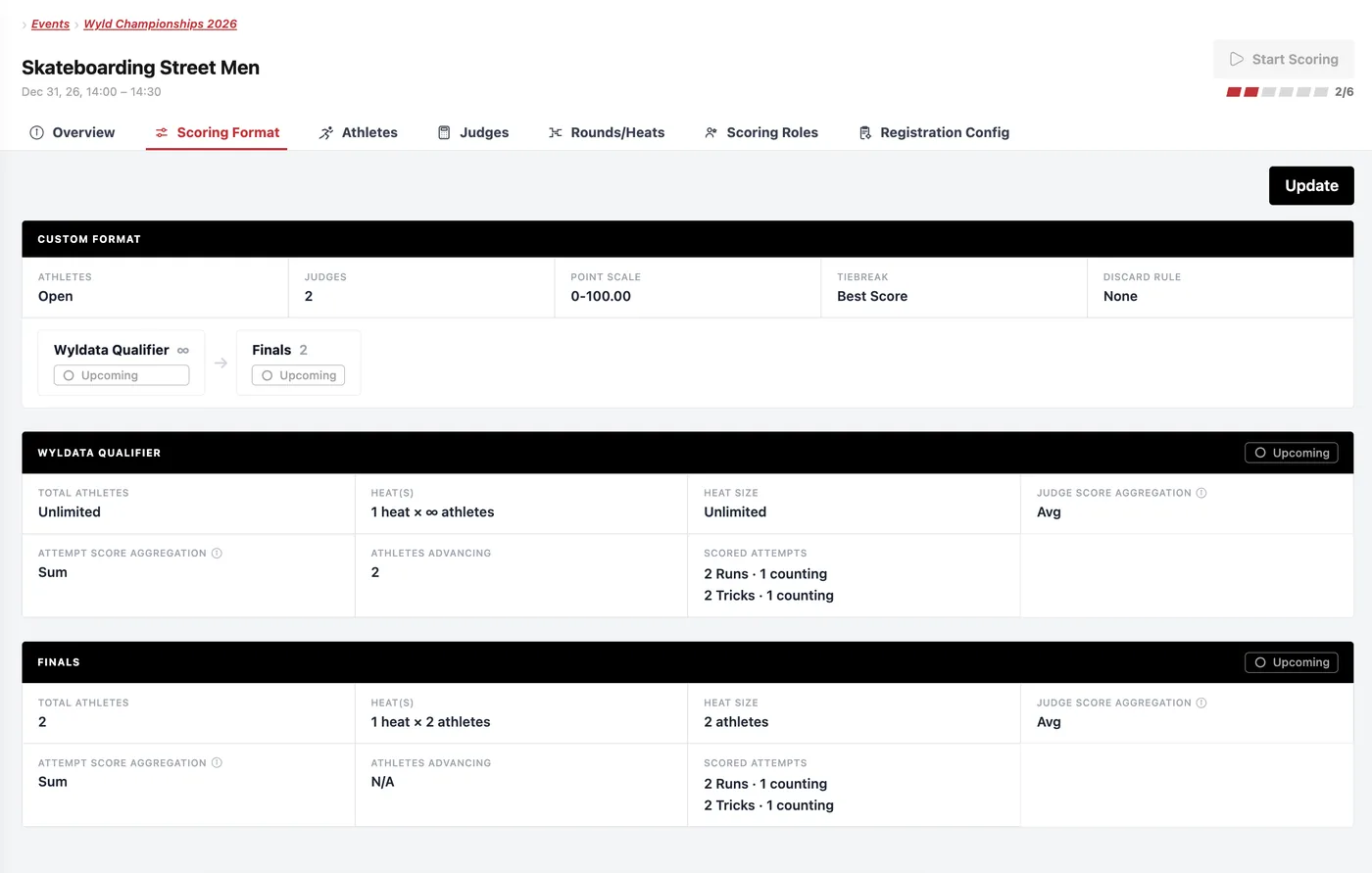
Summarizing Overview
You can change these settings, only until you started live scoring
6Athletes
MANAGING ATHLETES
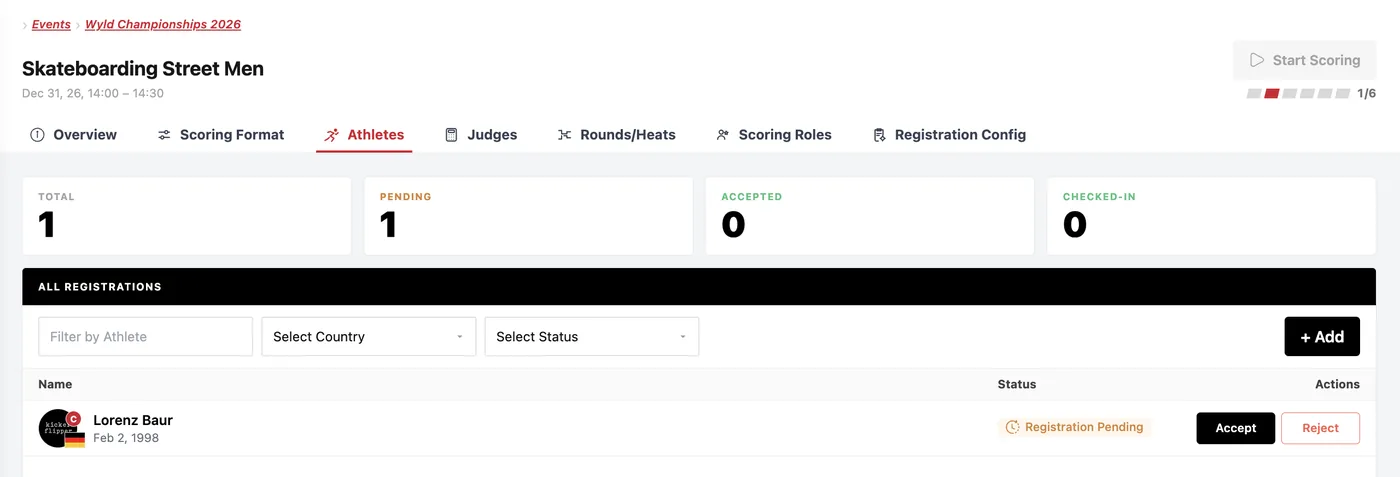
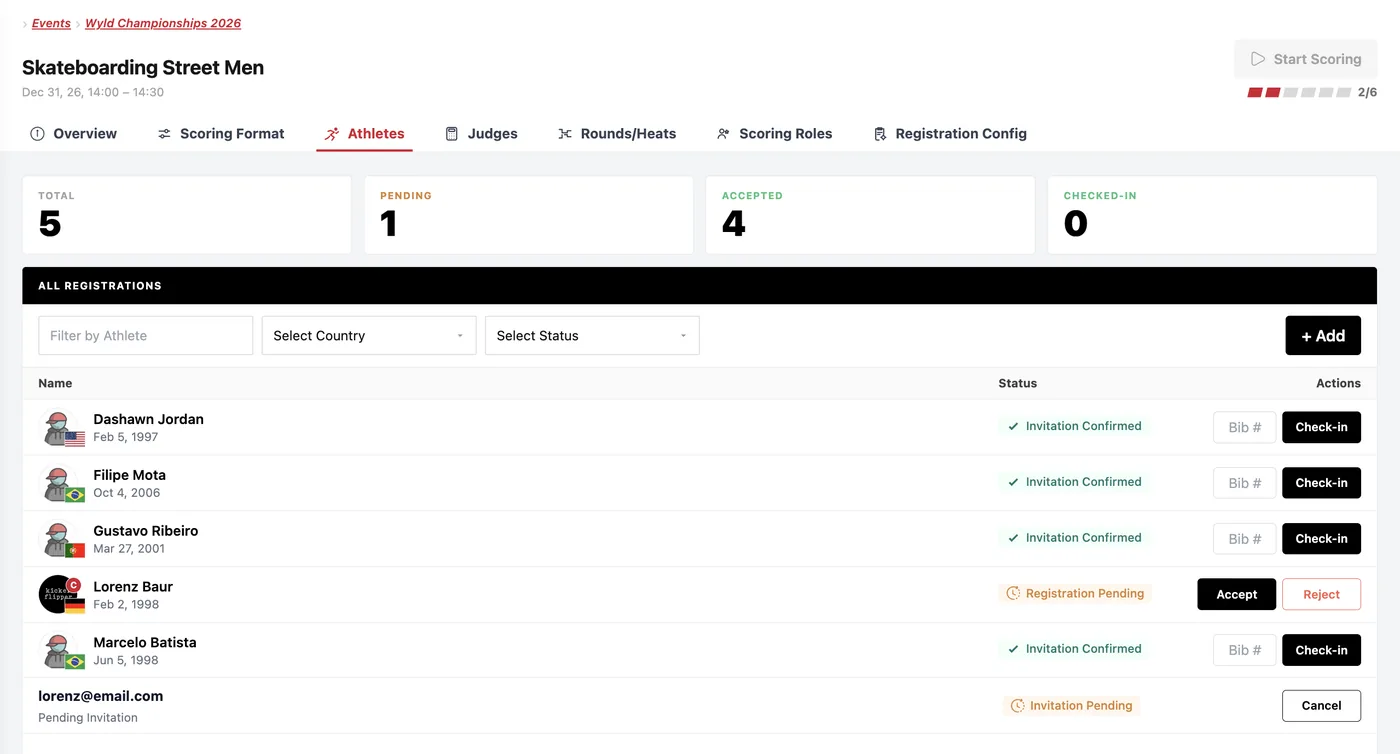
Here you can see all status options for athletes in the competition.
Dashawn Jordan, Filipe Mota, Gustavo Ribero & Marcelo Batista were added from our database to the competition -> Ready for Check In
Lorenz Baur found your event in the My Events Section for Athletes
lorenz@email.com was invited via email, he needs to create a profile and accept the invitation
💡
Via the three dots you can always force-accept an athlete's status, so they can be checked in and scored. This does not work for email only invitations! These must be added from the database or created in comma.
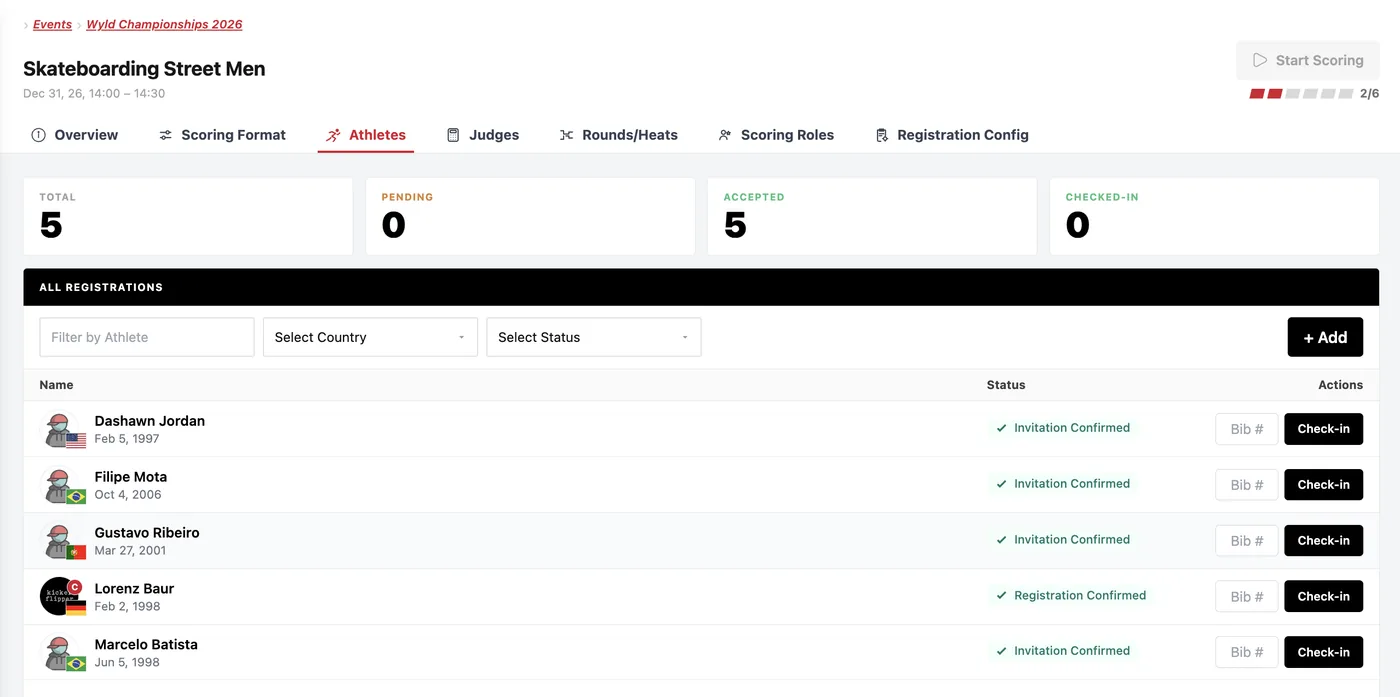
Once all athletes are added, invitations and/or requests are accepted you can check them in and add a BIB number (optionally).
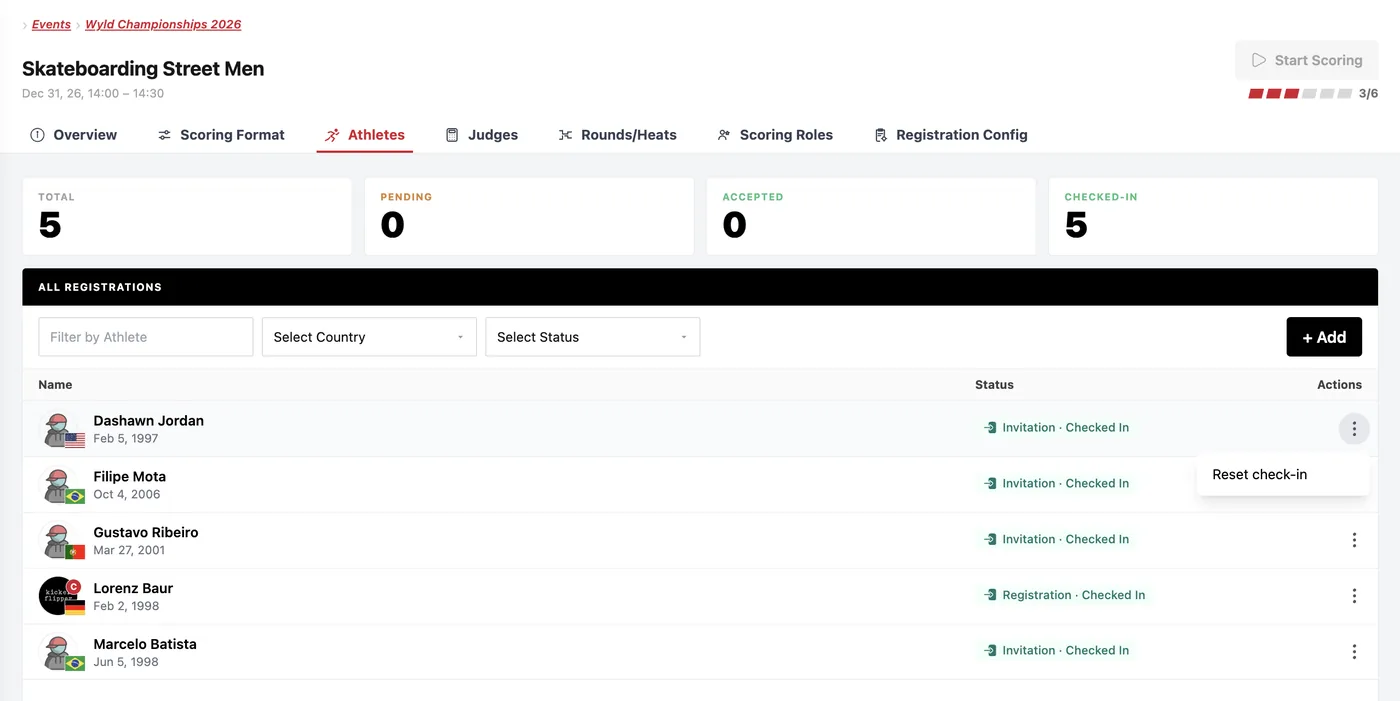
Athlete Check-In
Check-In all athletes that show up on competition day! Via the menu underneath 'Actions' you can reset the check in status for athletes, so they do not appear in the startlist.
Only Checked-In Athletes can be added to the startlist/heat.
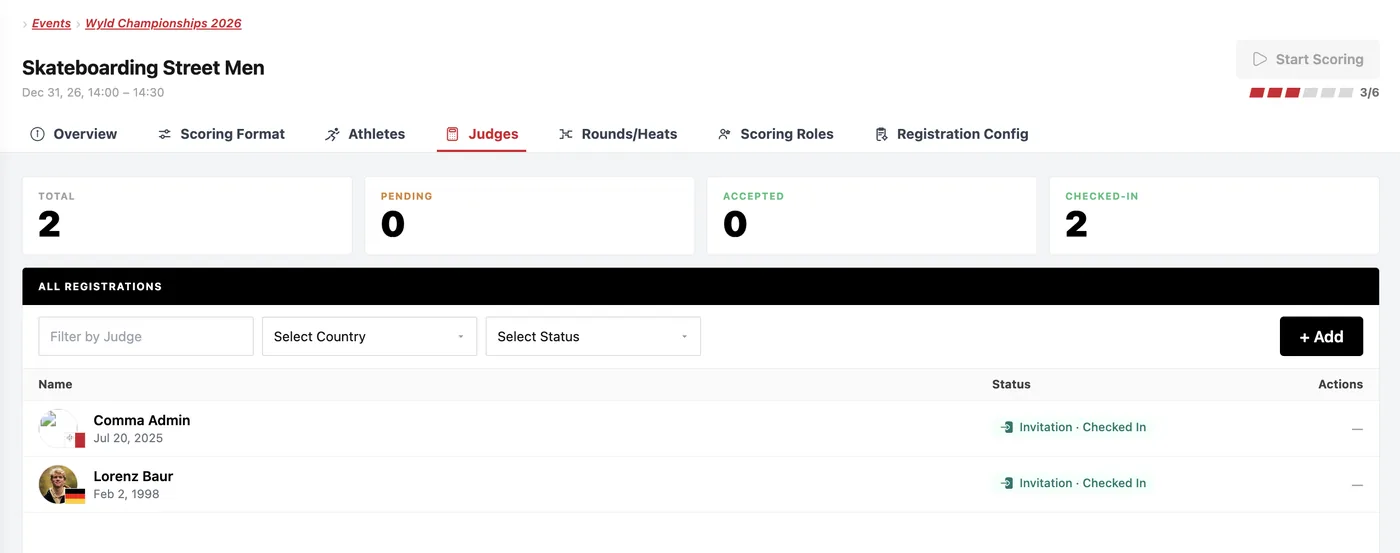
7Judges
Accepting/Rejecting Judges
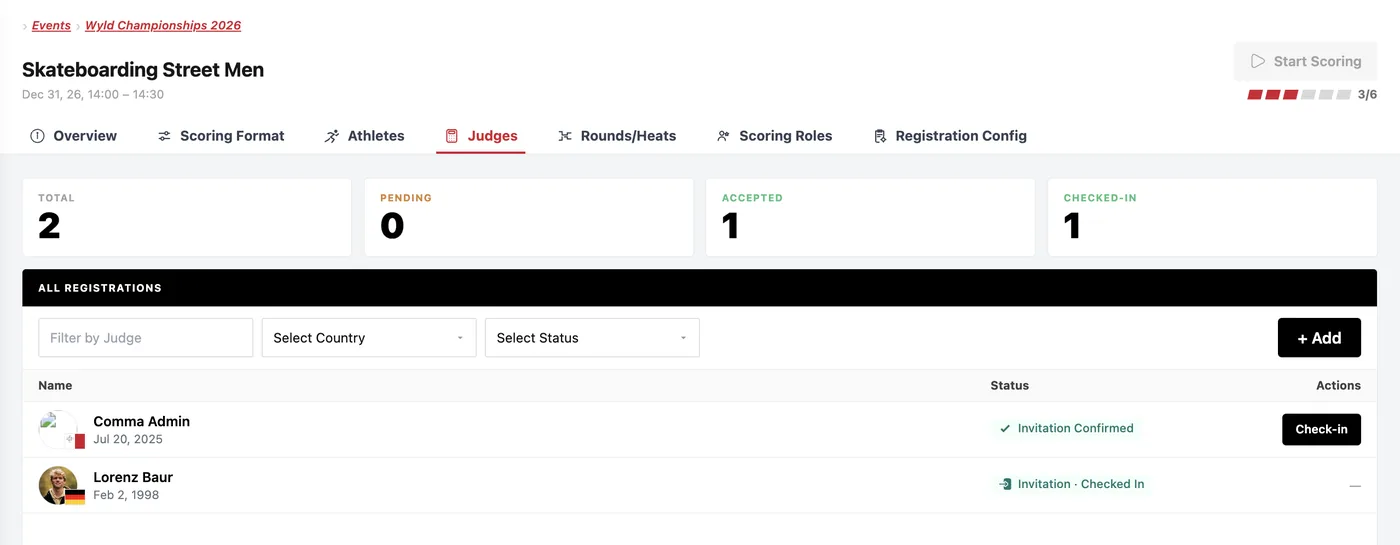
For every judge that registered for your event, you need to decide if you want to accept or reject them
Judge Check-In
Comp day has come and your judges arrive on-site. Time to check them in now and prepare for scoring.
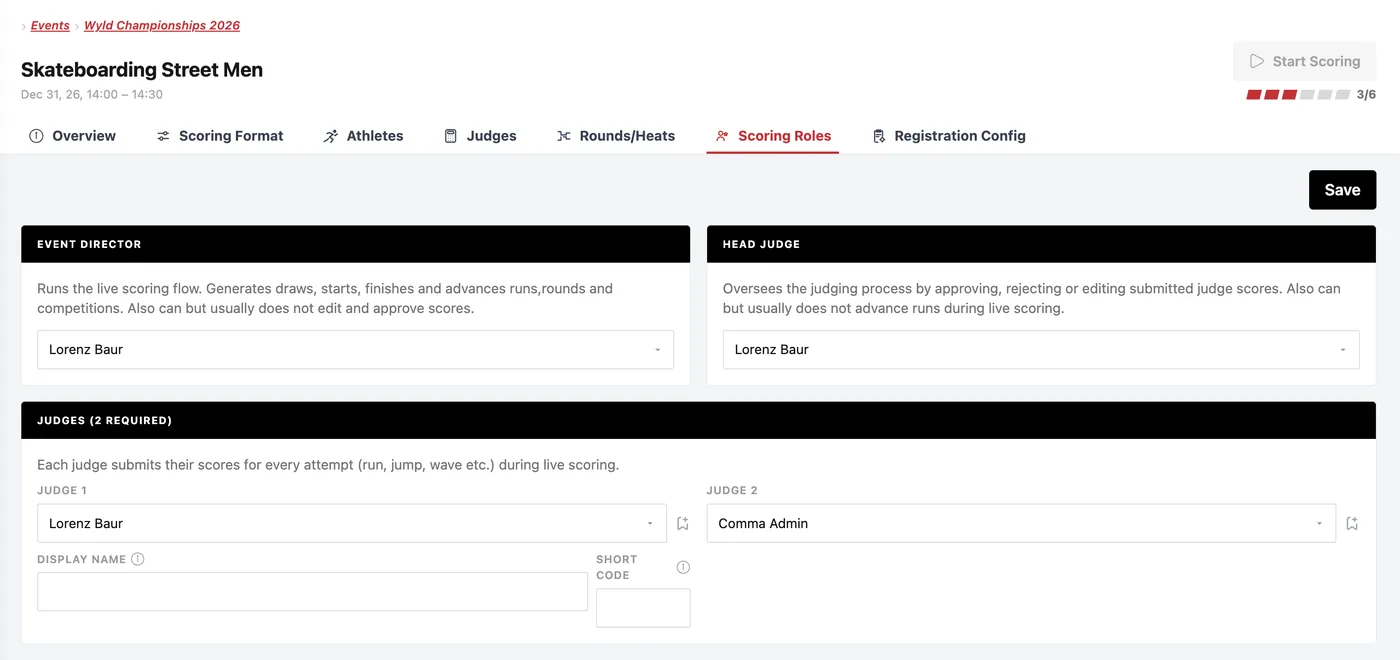
8Scoring Roles
Here you assign the roles for the Event Director and Judges.
Responsibility
Event Director
Head Judge
Judge
Start Live Scoring
✓
–
–
Pause / Finish Competition
✓
–
–
Set Any Run/Trick/Dive as Active
✓
✓
–
Advance to Next Rider
✓
✓
–
Set Rider Status (DNI, DNS, DSQ, etc.)
✓
✓
–
Enter Scores
✓
✓
✓
Approve Scores
–
✓
–
Publish Scores
–
✓
–
Oversee Scoring
–
✓
–
Edit Scores During/After Event
✓
✓
–
Event Director: Starts Live Scoring, selects athlete that starts now ->
Head Judge: Approves, correct scores of the judges
Judge: Enters Scores ->
8Rounds/Heats
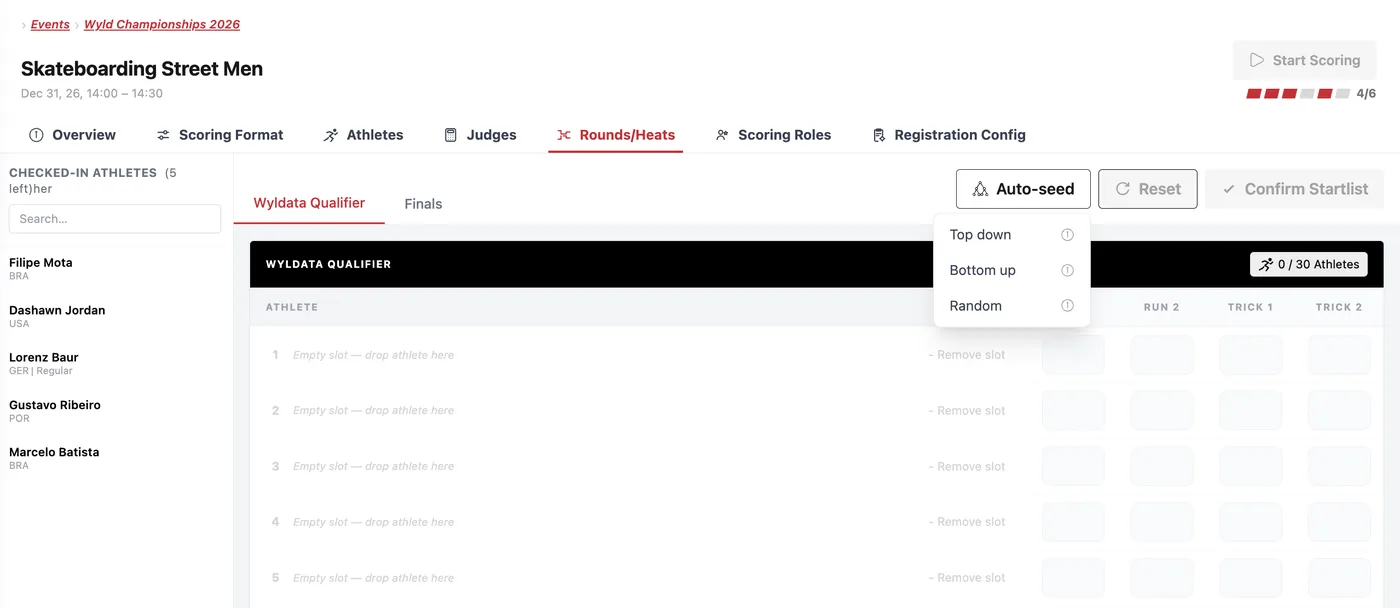
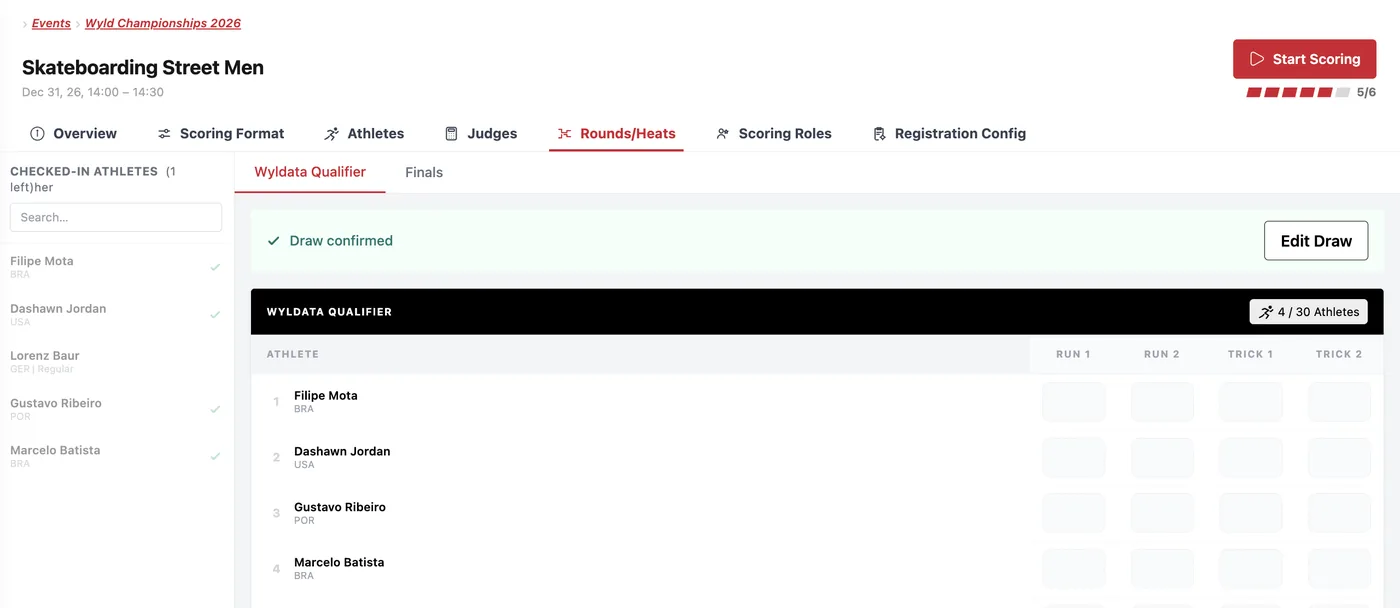
Now you are ready to assign your athletes to the rounds/heats
(Auto) Seed Athletes:
Athletes can be auto seeded into the first round, randomly, top to bottom or vice versa.
Preseeding Athletes:
If you would like to have certain athletes preseeded into a later round, select the round and add them here already. Don't forget to add the advancing athletes before starting the next round!
Manually seed Athletes into Heats/Rounds:
Drag & Drop the athlete on the desired starting position
PROCEEDING FROM ONE TO THE NEXT ROUND
9Get ready to run your competition!
You are all set to start live scoring. The Event Director has to start Live Scoring by clicking the button in the top right corner. Your Judges can now also enter the scoring screen.
Once you clicked on Start Live Scoring you cannot make any changes in Scoring Format or Scoring Roles!
Still open questions?
Tell us what your season needs. We will walk you through it,